This guide will show you the steps to processing an order.
To see the whole life cycle of an order please see:
The Order Flow / Life Cycle
Other related articles:
Start with an Accepted Order
For the following to apply you need to be viewing an order that has been accepted.
Process Order
Click on the [Process Order] button:

A window will open, you essentially just need to follow the on screen instructions. See below for more detail.
At the bottom of the window (you may need to scroll) you will see the relevant buttons to navigate your way through the order process window:

Step 1 of 4: Select Suppliers
For each line on the order start by selecting the supplier that will produce the goods:
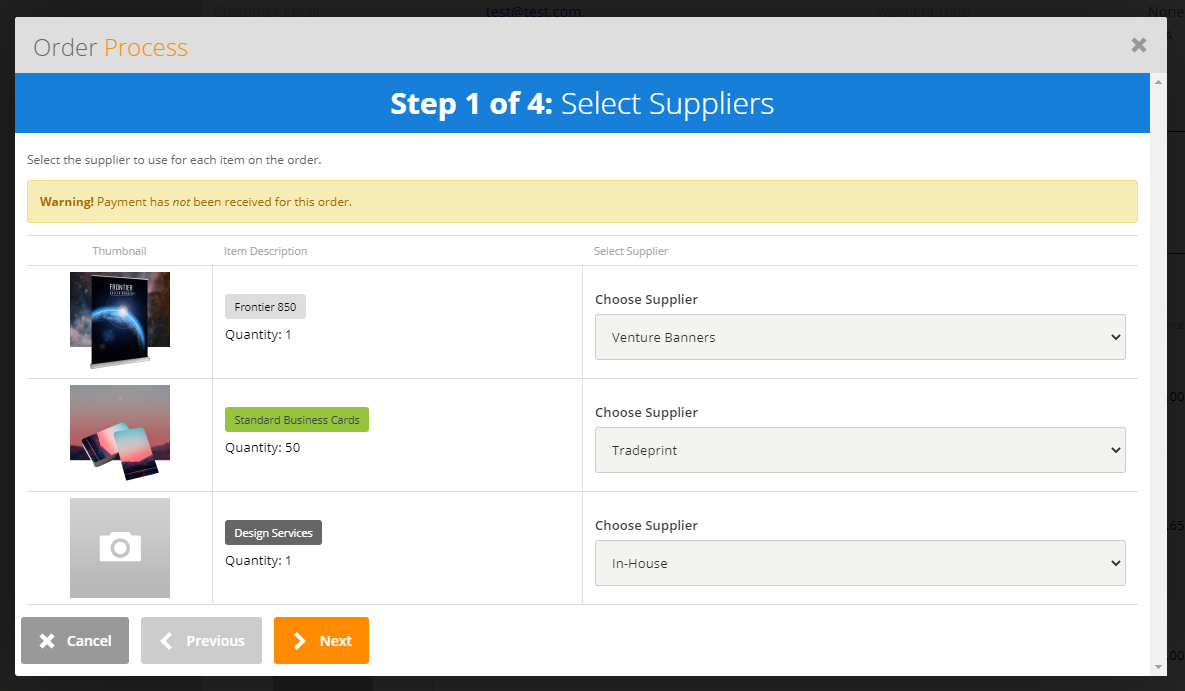
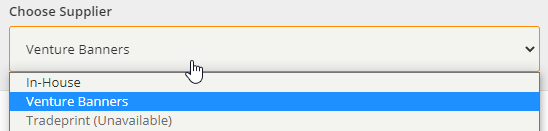
Any options that are not valid for a given order line will be disabled. For example, you cannot send a Venture Banners item to Tradeprint and vice versa.
If an item has been imported from a supplier that supplier will be selected by default.
You can choose to do any line in-house if you would prefer not to send it to the default supplier.
Step 2 of 4: Artwork Links
Attach any artwork files that the supplier may need to complete the job.
This step is optional and can be skipped. If you choose to skip it then the supplier may not be able to process your order and it will be in a status of awaiting artwork. You can lease directly with the appropriate supplier to send artwork at a later date.

To upload a just hover over the appropriate order line and click the [Pick File(s)] button:

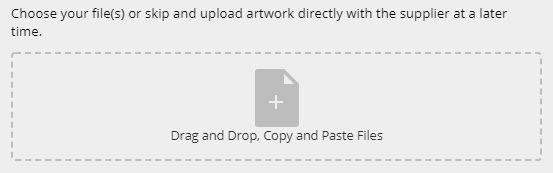
You can then either
- click the file icon to open a file-picker
- drag and drop a file directly into the dashed area
- copy and paste a file
Step 3 of 4: Delivery Details
For each supplier choose where the goods are to be delivered. You can choose to have them delivered to you or direct to the customer.

Step 4 of 4: Order Confirmation
Choose if you want to send the customer an Order Confirmation email.

It will be selected to do so by default but you can choose not to if you wish. For example, you may have already processed the order directly with the customer face-to-face or through another system.
The order confirmation email will give the customer an ETA for the order. This will be calculated by default from the meta-data attached to each item on the order. But this can be overridden:

Purchase Orders Raised
Once you have completed the processing the order the relevant Purchase Orders will be raised and where necessary sent to the supplier.
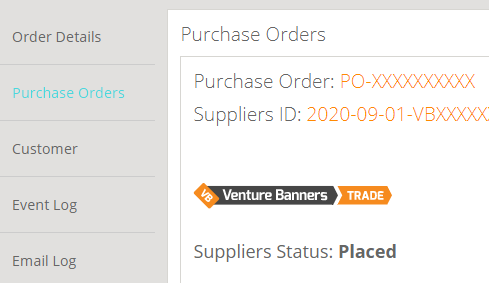
You will then be taken directly to the Purchase orders tab on the order in question.